
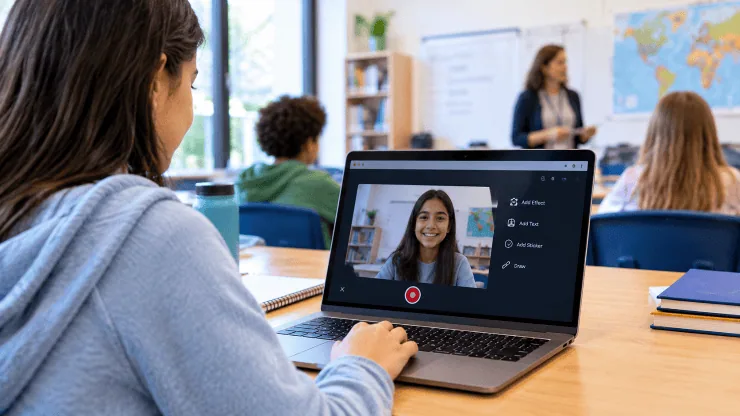
Flipgrid is a video-based learning tool that gives students a chance to share their ideas, answer questions, and participate in classroom discussions through short recordings. Instead of asking everyone to speak in front of the class, teachers can post a question and let students record their responses when they’re ready.
Previously known as Flipgrid, the platform became popular among educators for making classroom discussions more interactive. Students could record videos, add text and stickers, and respond to their classmates’ contributions. Teachers could use it for everything from simple introductions to group projects and subject-based activities.
Although Microsoft retired the standalone Flip website and apps in 2024, it retained the Flip camera experience within Microsoft Teams for Education. The original discussion platform and its features are therefore best understood as part of its history, with some video-assignment capabilities continuing in Teams.
What is Flipgrid?
Flipgrid is an educational video discussion platform originally developed to help teachers and students communicate through recorded videos. Rather than relying entirely on written answers or live classroom conversations, it allowed students to explain their thoughts in their own words and share them with others.
The platform organized classroom activities into two main sections: Grids and Topics. Teachers created a Grid for a class or group of learners and added individual Topics containing questions, instructions, or learning activities. Students could then record videos in response to those prompts.
For example, a science teacher could post a question about the water cycle and ask students to explain the process in a short video. Classmates could watch the submissions, share their thoughts, and learn from different explanations.
One of its biggest advantages was asynchronous communication. Students didn’t have to be online at the same time or answer immediately. They could think about a question, record their response, review it, and submit it when ready.
This approach gave quieter students more opportunities to participate and made classroom discussions less dependent on speaking confidently in front of others.
How Does Flipgrid Work?
The original Flipgrid experience followed a simple process. Teachers organized their classrooms, created discussion prompts, and shared access with students. Students then recorded responses and submitted them for review.
Here’s how both sides of the process worked.
How Flipgrid Works for Teachers
Teachers had control over the classroom activities and could organize discussions around their lesson plans.
1. Create a classroom Grid
A Grid represented a class, subject, or smaller group of students. Teachers could create separate Grids for different subjects or learning groups, making it easier to keep discussions organized.
2. Create a Topic
After setting up a Grid, teachers could add a Topic with a title, question, and instructions. They could also attach supporting videos, images, or other learning materials to help students understand the activity.
For example, an English teacher might create a Topic asking students to introduce their favorite book and explain why they recommend it.
3. Share the Topic with students
Teachers could share a unique link or join code with their students. Depending on the access settings, students could use the shared details to enter the classroom and find their assigned activity.
4. Review student responses
Once students submitted their recordings, teachers could watch their videos, assess their understanding, and provide feedback. They could also encourage students to respond to one another and continue the discussion.
Teachers could adjust privacy and moderation settings to control who could view or submit content. Video moderation was particularly useful when they wanted to review submissions before making them visible to other students.
How Flipgrid Works for Students
The student experience was equally straightforward. They didn’t need advanced video-editing skills to participate in classroom discussions.
1. Join the classroom
Students opened the link or entered the join code provided by their teacher to access the relevant Grid or Topic.
2. Read the instructions
Each Topic included a question or activity description. Students could review the instructions and any supporting material before recording their answers.
3. Record a video response
Using their device’s camera, students could record a short video explaining their thoughts. They could pause, review their recording, and try again if they weren’t satisfied with the result.
4. Edit and submit
Before submitting, students could add creative elements such as text, stickers, emojis, or drawings. Once everything looked right, they could upload their response.
5. Watch and interact
Students could view classmates’ recordings and share comments when the teacher enabled those options. This made it possible to learn from different opinions rather than simply completing an assignment and moving on.
Important Features of Flipgrid
Flipgrid offered several tools that made video-based classroom activities more engaging. Here are some of its most notable features.
Grids and Topics
Grids helped teachers organize students into virtual classrooms or smaller learning groups. Topics worked as individual discussion prompts within those Grids. Together, they provided a straightforward way to manage multiple classroom activities without mixing everything into one discussion.
Flip Shorts
Shorts was a built-in video creation and editing tool. Students and teachers could combine clips, trim recordings, add text, and include stickers or drawings. This made it easier to create presentations, demonstrations, and other video-based assignments.
Guest Mode
Guest Mode allowed teachers to invite people outside their classroom to participate. They could bring in subject experts, guest speakers, or parents to share their knowledge and experiences with students.
For instance, a teacher could invite a healthcare professional to answer questions about careers in medicine without arranging an in-person classroom visit.
Video Moderation
Teachers could review student recordings before allowing others to see them. They could also hide or remove individual submissions when necessary. These controls helped educators manage classroom discussions and maintain appropriate participation.
Comments and Peer Feedback
Students could share comments on classmates’ recordings when the relevant settings allowed it. Teachers could use this feature to encourage constructive feedback, follow-up questions, and conversations around different viewpoints.
MixTapes
MixTapes allowed teachers to bring selected student videos together into one collection. They could use these collections to showcase completed projects, highlight classroom discussions, or create revision materials.
Audio-Only Responses
Not every student feels comfortable appearing on camera. Flipgrid included a microphone-only recording option that allowed students to share their answers without showing their faces. This provided another way to participate in classroom activities.
Benefits of Using Flipgrid in Education
The platform offered more than a convenient way to record videos. It also introduced different ways for students to communicate and demonstrate what they had learned.
- Encourages participation: Students who hesitate to speak in class get more time to prepare their answers and share their opinions.
- Builds confidence: Recording responses at their own pace can help students become more comfortable explaining ideas.
- Develops creativity: Video editing tools, stickers, text, and drawings give students different ways to present their work.
- Supports deeper learning: Explaining a concept in their own words encourages students to think about what they have learned.
- Improves communication: Students practice speaking clearly, listening to others, and responding respectfully.
- Makes collaboration easier: Classmates can exchange feedback, discuss assignments, and learn from each other’s perspectives.
- Supports remote learning: Recorded discussions allow students to participate from different locations without needing to join a live session.
Ways Teachers Can Use Flipgrid in the Classroom
Teachers can incorporate video discussions into almost any subject. The following examples show how the platform could support everyday learning activities.
Book reviews: Ask students to record short reviews explaining their favorite parts of a book, discussing its characters, or recommending it to classmates.
Math explanations: Instead of submitting only the final answer, students can record themselves explaining the steps they followed to solve a problem.
Science projects: Students can demonstrate experiments, explain scientific processes, or share the results of group activities.
Foreign language practice: Students can record conversations and practice pronunciation. Teachers can also connect learners with speakers of other languages for additional practice.
Classroom reflections: Ask students to share one thing they learned during the lesson and one question they still have. These recordings can help teachers understand where students need additional support.
Guest speaker sessions: Invite professionals to answer questions recorded by students. This gives learners an opportunity to hear about different careers and real-world experiences.
Supporting absent students: Teachers can share lesson explanations and classroom recordings so students who miss a class can review the material and stay informed.
Is Flipgrid Still Available?
This is important for anyone looking to start using Flipgrid today.
Microsoft retired the standalone Flip website and mobile applications in 2024. The website moved into read-only mode in July, and the standalone service was fully retired after September 30, 2024.
However, Microsoft retained the Flip camera experience within Microsoft Teams for Education. Teachers can create video assignments, share them with students, and receive recorded responses through Teams.
If you want to explore this option, Microsoft’s official guide to using the Flip camera in Teams for Education explains how educators can continue using video assignments.
It’s worth remembering that Teams does not reproduce every feature of the original Flipgrid platform. Features such as the original MixTapes and discussion experience should not be assumed to work in exactly the same way.
Conclusion
Flipgrid changed how teachers and students could approach classroom discussions by making video a central part of the learning process. Students could share their understanding, present projects, and exchange ideas without the pressure of speaking in front of everyone.
Teachers, meanwhile, had a practical way to organize discussions, review student work, and encourage participation from different types of learners.
Although the standalone platform is no longer available, its video-recording approach continues through Microsoft Teams for Education. Its original concept remains a useful example of how technology can make classroom communication more interactive and give students different ways to express what they know.