
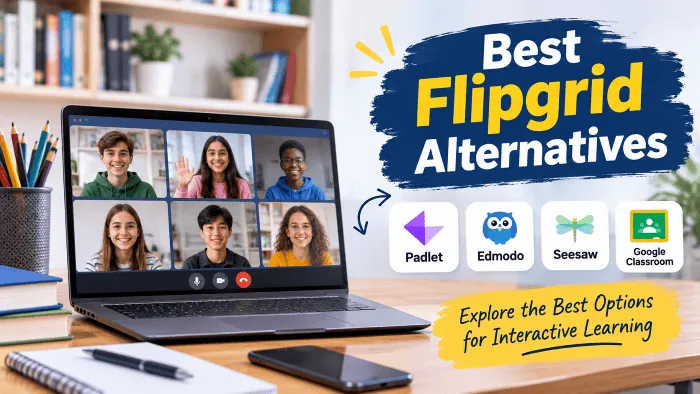
Flipgrid made classroom discussions feel different. Instead of relying only on written assignments or speaking in front of the entire class, students could record short videos, share their ideas, and respond to classmates. Teachers could review submissions later, making it easier to include students who needed more time to prepare their answers.
However, Microsoft retired the standalone Flip website and mobile apps in 2024. Although the Flip camera experience remains available in Microsoft Teams for Education, it does not offer the complete original Flipgrid experience. Teachers looking for dedicated discussion spaces and student video replies may need another platform.
The good news is that several tools can fill different parts of that gap. Here are the best Flipgrid alternatives for teachers and students, along with what each one does well.
1. Gravity – Best for Flipgrid-Style Video Discussions
Gravity is worth considering if you want an experience close to the original Flipgrid. Teachers can create a classroom community, post a discussion prompt, and invite students to record video responses. Students can also reply to one another, keeping the conversation going beyond the initial assignment.
Its video transcription and AI-assisted analysis features offer additional ways to review student contributions, although teachers should treat automated feedback as a supplement to their own assessment.
Best for: Teachers who want short video responses, classroom discussions, and student-to-student replies.
Things to consider: Check the current recording limits and free-plan restrictions before using it with a large class.
2. Padlet – Best for Classroom Discussions
Padlet gives teachers a shared digital board where students can post videos, audio recordings, images, text, and links. Its flexible layouts make it useful for organizing classroom discussions without limiting students to one type of response.
Teachers can share a board through a link or QR code and allow students to comment on classmates’ posts. Approval settings also help teachers review submissions before they become visible to others.
For example, a middle-school English teacher could create a board asking students to discuss a character from a novel. Each student posts a short video, watches classmates’ responses, and adds a comment.
Best for: Video discussions, classroom introductions, weekly reflections, and peer feedback.
Things to consider: The free plan has a limited number of active boards. Without clear instructions, a busy board can also become difficult to organize.
3. Seesaw – Best for Elementary Students
Seesaw is designed around younger learners, making it a strong choice for elementary classrooms. Its straightforward interface helps students complete activities without navigating complicated menus.
Students can record videos, take photographs, draw, and add voice recordings to their assignments. Teachers can organize submissions into digital portfolios and share selected work with families.
A teacher might ask second-grade students to explain how a plant grows. Each child records a short response, submits it through the activity, and the teacher reviews the recordings later.
Best for: Kindergarten through Grade 5, reading responses, student portfolios, and classroom reflections.
Things to consider: Seesaw is more focused on student work and portfolios than open video discussions. Its peer-reply features are not as extensive as Flipgrid’s original setup.
4. Loom – Best for Quick Video Recording
Loom focuses on making video recording and sharing straightforward. Students can record their webcam, screen, or both, then share the recording through a link.
This makes it useful when students need to explain a presentation, demonstrate a process, or walk a teacher through their work. Teachers can also record instructions so students can revisit them while completing an assignment.
For instance, a student working on a computer science project could record their screen while explaining how their program works.
Best for: Presentations, homework explanations, screen demonstrations, and teacher instructions.
Things to consider: Loom is a general-purpose recording tool, not a dedicated classroom discussion platform. Teachers need to manage access to shared recordings themselves, and education pricing or eligibility should be checked before adopting it.
5. VoiceThread – Best for Multimedia Discussions
VoiceThread takes a slightly different approach to classroom interaction. Instead of asking everyone to upload a separate video, teachers or students share a central piece of content, such as a photograph, document, presentation, or video. Others can then respond using video, audio, or text comments.
This format works particularly well when students need to discuss the same material from different perspectives.
An art teacher, for example, could upload a painting and ask students to share their interpretations. Classmates can listen to the responses and add their own observations.
Best for: Art critiques, book discussions, language practice, and multimedia assignments.
Things to consider: Its discussion format is useful, but the interface may take some getting used to. Check the available education plans and features before choosing it.
6. Edpuzzle – Best for Interactive Video Lessons
Edpuzzle is a good option when your main goal is to check whether students understand a video lesson. Teachers can select an instructional video or upload their own and insert questions at relevant points.
Students watch the material and answer questions as they progress. Teachers can then review their responses and see how students performed.
For example, a science teacher could share a video about the water cycle and add questions about evaporation, condensation, and precipitation. This turns passive watching into an active learning exercise.
Best for: Flipped classrooms, video-based lessons, comprehension checks, and language learning.
Things to consider: Edpuzzle focuses on teacher-led video lessons rather than student-to-student video conversations. It is better viewed as a complementary teaching tool than a direct Flipgrid replacement.
7. Adobe Express – Best for Creative Video Assignments
Adobe Express gives students tools to create visual presentations, narrated slides, and short videos. Features such as Animate with Audio let students record their voices alongside animated characters.
This can make assignments more engaging for students who enjoy storytelling and creative projects. They can organize their ideas visually before presenting them.
A language arts teacher could ask students to create an animated retelling of a story, while a language teacher might use narrated slides to practice vocabulary and pronunciation.
Best for: Storytelling, creative projects, presentations, and language arts.
Things to consider: Adobe Express is designed for content creation, not classroom video discussions. Students cannot use it as a direct substitute for Flipgrid’s original reply-based feed.
8. Canva for Education – Best for Student Presentations
Canva for Education is another useful option for video-based assignments, particularly when students need to explain their work through presentations.
Students can create slides, add images and other visual elements, and record themselves presenting the material. This combines presentation skills with spoken explanations.
For example, students researching a historical event can build a presentation and record a short explanation of its causes and consequences.
Best for: Research projects, book reports, science explanations, and visual presentations.
Things to consider: Canva does not provide the same dedicated classroom video discussion experience as Flipgrid. Its strength lies in helping students create and present their work.
Quick Comparison: Which Flipgrid Alternative Should You Choose?
| Platform | Best for | Video discussions |
|---|---|---|
| Gravity | Flipgrid-style classroom interaction | Yes |
| Padlet | Shared discussions and peer feedback | Yes |
| Seesaw | Elementary students and portfolios | Limited |
| Loom | Quick recordings and demonstrations | No dedicated feed |
| VoiceThread | Multimedia discussions | Yes |
| Edpuzzle | Interactive video lessons | No |
| Adobe Express | Creative video projects | No |
| Canva for Education | Presentations and visual assignments | No |
How to Choose the Right Alternative
Before moving your classroom to a new platform, think about what you actually used Flipgrid for. A tool that works well for presentations may not be suitable for weekly student discussions.
Keep these points in mind:
- Consider student age: Younger learners generally need simpler interfaces. Seesaw is a good starting point for elementary classrooms.
- Decide how students should interact: If classmates need to reply to one another, prioritize Gravity, Padlet, or VoiceThread.
- Check privacy settings: Look for restricted sharing, teacher moderation, and appropriate student-account requirements. Review your school’s privacy policies before sharing recordings.
- Review device compatibility: Make sure the platform works on the computers, Chromebooks, and tablets students already use.
- Check free-plan limits: Recording time, storage, active boards, and student access can vary between plans.
- Test one assignment first: Reuse an existing classroom prompt and see how easily students can complete it before switching every class.
You may also find that two tools work better than one. For example, Padlet can handle asynchronous video discussions, while a separate presentation tool can support creative projects.
Are Free Flipgrid Alternatives Enough?
For many classroom activities, free plans provide a reasonable starting point. Teachers can often create basic assignments, collect responses, and share learning materials without purchasing a subscription.
However, free access does not always mean unlimited use. Some platforms restrict the number of boards, storage space, recording length, or advanced features. Paid school plans may offer additional administration and reporting options.
Start with the free version and upgrade only when a specific classroom requirement makes it necessary.
Conclusion
There is no single tool that replaces everything Flipgrid offered. Gravity comes closest to its video-discussion format, Padlet provides flexible classroom interaction, and Seesaw is particularly useful for younger students. Other platforms serve more specific needs, from interactive lessons to creative presentations.
The best choice depends on how your students learn and what you want them to accomplish. Try one familiar classroom activity with your preferred tool before making a complete switch. That small test will tell you more about its suitability than a long list of features.